
How to make a travel video montage on iPhone
Turn your trip clips into one video cut to a song, with no timeline. Seven steps in Content Maxer, with a screenshot of each.

The short version
To make a travel video montage on iPhone, cut your trip clips to the beat of a song. In Content Maxer you keep the seconds you like from your travel videos and add a song. The app finds the beats on your iPhone and cuts the seconds you kept to them, in the Shape you pick for TikTok or Reels.
It takes seven steps.
- Make a Source for your trip
- Keep the moments you want
- Fine-tune the moment
- Add your song and choose the part
- Choose your Sources and the Shape
- Tap Generate edit
- Save the edit or share it
Tap Generate edit again and you get a different edit from the same seconds.
Free download. 7-day free trial on the yearly plan, then a subscription is required. iPhone only.
What you need
- An iPhone with iOS 16.4 or later and Content Maxer installed.
- Your trip videos in the Photos library. Videos stored in iCloud download first.
- A song as an audio file on the iPhone, or one of your own videos that has the song as its sound.
How to make a travel video to music on iPhone
This is how to make a travel video to music in Content Maxer, a beat sync video editor for iPhone. Words in bold are the names you see in the app.
The screenshots are from version 1.0.5, and the white outline marks what to tap. The Source names, clips and song in them are demo content, not a real trip.
1. Make a Source for your trip
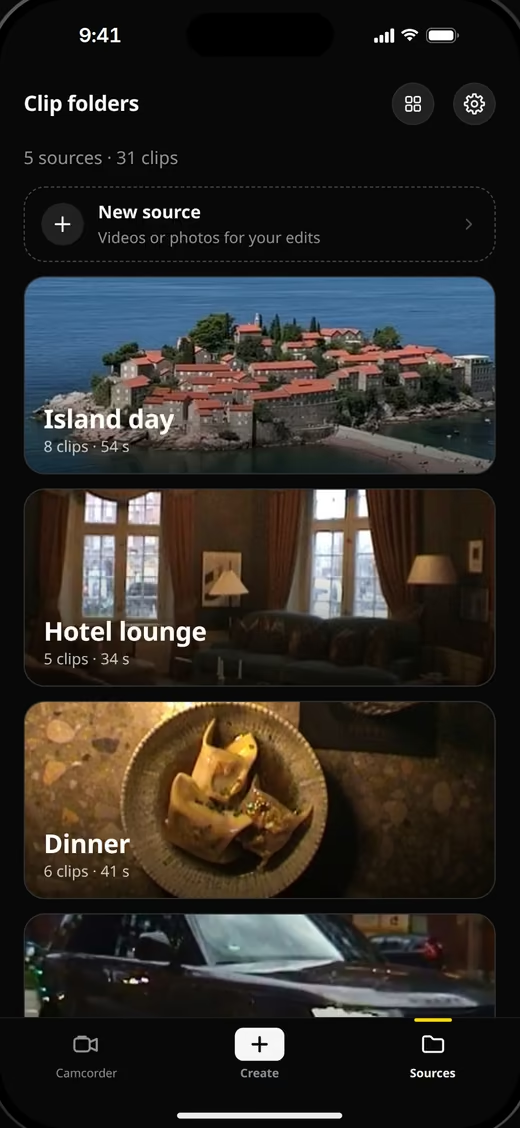
A Source is a folder of one-second moments from your videos, and your edit is cut from them. Make one per trip, or one per stop. Go to the Sources tab (screen title Clip folders) and tap New source.

Type a name. The field suggests a place, such as Ibiza or Paris.
Then tap Videos under Fill it with. Your Photos library opens: choose a video from your trip and tap Use this video. If the video is in iCloud, keep the app open while it downloads.

2. Keep the moments you want
The app opens Pick your moments with your video. This is where you choose the seconds that get cut to the beat. The app does not pick them for you.
- Drag the yellow one-second window to a moment you like.
- Tap Keep this second. Do it again for every second you want from this video.
- Tap Save N seconds. The button counts the seconds you kept.

Add more videos from the same stop the same way: open the Source and tap Add video. You can keep as many seconds from one video as you like.
3. Fine-tune the moment
If the window is close to the frame you want but not on it, use Fine-tune the moment. Drag the ruler under the video to move the window by single frames. If dragging feels backwards, tap the button on the right of the ruler to flip the direction.

4. Add your song and choose the part
Open the Create tab. Audio is the first row. Add a song from your files, or tap Extract to use the sound of one of your own videos.

A sheet opens: Pick the part of the song. Drag the yellow window to choose the part the edit should use, pick a Length (10 s, 15 s, 20 s or 30 s), then tap Use this part. Every edit you generate uses this part, and you can change it later by tapping the song on Create.

5. Choose your Sources and the Shape
Back on Create, keep Videos selected (an edit is all videos or all images).
The Sources row sets which Sources go into the edit. All uses every Source, Choose lets you pick (for example only one trip), and Auto picks 3-6 at random.
Under Shape, pick the format: 9:16, 3:4, 1:1, 4:3 or 16:9. For TikTok and Reels, pick 9:16. Your clips can be any shape, and the edit fills the Shape you choose.
Add ending is optional and puts a one-second “Made with Content Maxer” ending on the edit.

Choose opens a list of your Sources. Tick the ones you want, then tap Done.

6. Tap Generate edit
Tap Generate edit at the bottom of Create. The app detects the beats of your song on your iPhone and cuts your kept seconds to them. While it works, it shows Finding the beat, Picking moments, Cutting to the beat and Saving to Photos.
Tap it again for a different edit from the same seconds. If a cut needs more seconds than your Sources hold, the app tells you how many it wants and how many you have, and asks you to add more to a Source.

7. Save the edit or share it
The finished edit is saved to Photos. The sheet shows Post it with #contentmaxerapp, then Share (opens the iOS share sheet), Open in Photos, Convert (applies the camcorder look) and Done. To post it, tap Share and pick the app in the share sheet.

Choosing clips for a travel montage
The edit is made only from the seconds you kept, so what you keep decides how it looks. A few habits that help:
- Keep seconds, not scenes. Each kept moment is one second long. Look for the second that carries the shot: a wave breaking, a tram turning a corner, a door opening onto a view.
- Mix wide shots with details. A wide shot of the place, then a close shot of food or a street sign. Cuts feel more varied when neighbouring clips look different.
- Draw from the whole trip. Keep a few seconds from arrival, from each stop and from the evening. One Source per stop makes that easy.
- Prefer clean moments. Skip seconds where the camera is mid-shake or a hand covers the lens. You have the whole video to choose from.
- Think about the Shape. Your clips can be any shape and the edit fills the Shape you choose, so check the first result to see how your footage sits in the frame.
How many moments to keep
There is no fixed number to aim for. How many seconds a cut needs depends on your song and on the part you chose. Content Maxer detects the beats and cuts on them, so a longer part generally needs more moments.
Start with a few seconds from each stop and tap Generate edit. If you kept too few, the app says so and tells you how many seconds the cut wants. Then add moments to a Source and try again.
Example calculation
This shows how kept seconds add up across a trip. The numbers are assumed.
Example only. Not a promise and not a typical result.
4 stops (assumed) × 6 kept seconds each (assumed) = 24 kept seconds
These numbers are an assumption to keep the maths simple. Content Maxer cannot tell you how many seconds your edit needs, because that depends on the song and the part you choose. The app tells you when a cut wants more than you have.
What the app changes is how you collect them: one Source per stop, a few seconds from each, and a new edit whenever you tap Generate edit. Put in your own stops and seconds.
Adding the camcorder look
Content Maxer also has a camcorder look, which suits holiday footage. Convert your clips in the Camcorder tab before you add them to a Source, or tap Convert on the finished edit.
You can also film a clip in the Camcorder tab with the look on. The guide on the VHS camcorder look on iPhone shows each step.

Where the song and the clips come from
The song is an audio file on your iPhone, or the sound of one of your own videos. The clips come from your Photos library. Content Maxer cannot download audio or clips from TikTok or Instagram.
Use clips and music you have the rights to, and check the rules of the platform you post on. Your own footage is the safe choice. Content Maxer works with what is on your iPhone and does not download clips or music.
Making a new montage for every trip, or every week? See how the same steps work for artists in the guide on how to promote a song on TikTok. For the general method, read how to sync video clips to music on iPhone.
What Content Maxer does and doesn’t do
If you are looking for a travel montage app, this is what Content Maxer does: it cuts the seconds you keep to the beat of a song. It is a general editing app, with no travel templates, maps or text.
It does
- Cut the seconds you kept to the beat of your song
- Use a song file or the sound of one of your videos
- Make a new edit each time you tap Generate edit
- Export in 9:16, 3:4, 1:1, 4:3 and 16:9
- Process everything on your iPhone, with no account
It doesn’t
- Find the highlights of a video by itself: you keep the seconds
- Use generative AI or create footage
- Add text, stickers, templates or transitions: it makes hard cuts only
- Download music or clips from TikTok or Instagram
- Run on Android, or work without a subscription
Travel video montage on iPhone: FAQ
Can I use travel clips that are stored in iCloud?
Yes. A video that lives in iCloud downloads first, and Content Maxer shows “Downloading from iCloud…”. Keep the app open while it downloads. If the download fails, try again.
Which Shape should I pick for TikTok and Reels?
Pick 9:16, the vertical Shape, which the app lists for TikTok, Reels and Shorts. The Shape row on Create also offers 3:4, 1:1, 4:3 and 16:9. Choose it before you tap Generate edit.
Is Content Maxer a travel montage app?
It cuts trip clips to music, but it has no travel features. There are no travel templates, maps or text overlays, so your holiday footage works like any other footage. There is no account, and the beats are detected and the edit is made on your iPhone.
Does Content Maxer use generative AI or choose my highlights?
No. Content Maxer has no generative AI and does not create footage. It also does not look for highlights in your videos: you keep the seconds you like, and the app cuts them to the beat of your song.
How much does Content Maxer cost?
Content Maxer is free to download. Using the app requires a subscription: $49.99 per year with a 7-day free trial, or $9.99 per month. Both renew automatically until you cancel in Settings › [your name] › Subscriptions. Details in Pricing.
Something else? See Support.