
How to promote a song on TikTok when you don’t know what to post
Make beat-synced edits with your song and post one every day. These are the six steps in Content Maxer for iPhone, with a screenshot of each.
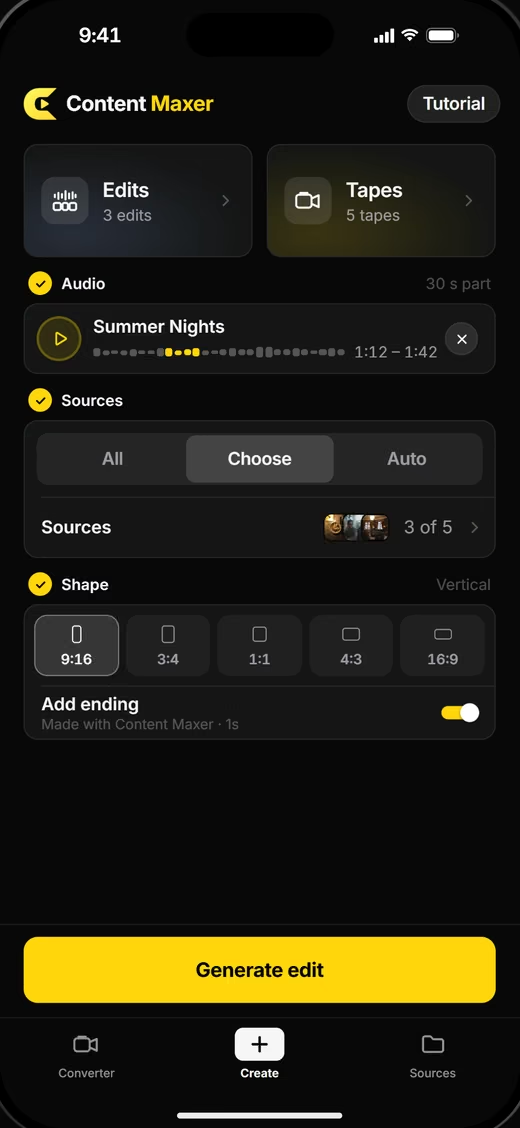

The short version
To promote a song on TikTok you need short videos that all use the same part of the song, and you need a lot of them. A beat sync edit is the quickest kind to make: clips cut on the beat of your track. In Content Maxer it takes six steps.
- Add your song under Audio
- Pick the part of the song
- Add Sources and keep the best seconds
- Choose the Shape, 9:16 for TikTok
- Tap Generate edit
- Save it and share it to TikTok
Tap Generate edit again and you get a different edit from the same clips.
Free download. 7-day free trial on the yearly plan, then a subscription is required. iPhone only.
What you need
- An iPhone with Content Maxer installed.
- Your song as an audio file on the iPhone, or a video that has the song as its sound.
- Videos or photos in your Photos library to cut from.
How to make TikTok edits for your song
This is how to make music edits for TikTok in Content Maxer, a beat sync video editor for iPhone. Words in bold are the names you see in the app. The screenshots are from version 1.0.4, and the white outline marks what to tap.
1. Add your song
Open the Create tab. Audio is the first row. Add your song from your files, or use the sound of a video you have.

2. Pick the part of the song
A sheet opens: Pick the part of the song. Drag the yellow window to the hook, the drop, or the line you want people to remember. Pick a Length (10 s, 15 s, 20 s or 30 s), then tap Use this part.
Every edit you generate uses this part.
To change it later, tap the song on Create and pick a different part. You don’t have to add the song again.

3. Add Sources and keep the best seconds
A Source is a folder of one-second moments taken from your videos. Edits are cut from these moments. You build a Source once and reuse it for every later edit.
Go to the Sources tab (screen title Clip folders), tap New source and pick a video from Photos.

The app opens Pick your moments:
- Drag the yellow window to a second you like.
- Tap Keep this second. Repeat for as many seconds as you want.
- Tap Save N seconds (or Save to source when empty). The button counts the seconds you kept.

Back on Create, the Sources row sets which Sources go into the edit. All uses every Source. Choose lets you pick, for example only your studio footage.

4. Choose the Shape
Under Shape, tap 9:16. That is the vertical format for TikTok. The other shapes are 3:4, 1:1, 4:3 and 16:9.
Add ending puts a one-second “Made with Content Maxer” ending on the edit. Switch it off if you don’t want it.

5. Tap Generate edit
Tap Generate edit at the bottom of Create. The app finds the beats in your song on your iPhone and cuts your kept seconds to them.
Tap it again for a different edit from the same seconds.

6. Save it and share it to TikTok
The finished edit is saved to Photos. The sheet shows Post it with #contentmaxerapp, then Share (choose TikTok in the share sheet), Open in Photos, Convert (applies the camcorder look) and Done.
Every edit also stays in the app under Edits, at the top of Create.

What to put in your Sources
Videos and photos from your Photos library can go into a Source. Some ideas for artists:
- Your own footage: studio sessions, live shows, tour days, the video shoot.
- Film and series scenes that fit the mood of the track.
- Football and other sports: goals, celebrations, tunnel walks.
- Photos: cover art, press shots, pictures from the shoot.
One Source per theme keeps an edit consistent. Make one per film, one per club, one for your studio footage.
Use clips and music you have the rights to, and check the rules of the platform you post on. Your own footage is the safe choice. Content Maxer does not download clips or music. It works with what is on your iPhone.
If your own footage looks too much like a phone recording, run it through the Converter first to give it a camcorder look, then add it to a Source.
Posting every day
Building Sources takes some time, once. After that a new video is a few taps: open Create, tap Generate edit, share. When a video takes a minute to make, posting every day is realistic.
- Once: build a few Sources.
- Each day: generate a few edits and post the ones you like.
- Each week: add new clips and try a different part of the song.
- Next release: same Sources, new song.
Example calculation
This shows what daily posting adds up to. The numbers are assumed.
Example only. Not a promise and not a typical result.
5 edits a day × 30 days = 150 videos
150 videos × 5,000 views each (assumed) = 750,000 views in a month
5,000 views per video is an assumption chosen to keep the maths simple. Content Maxer has not measured it and cannot promise it. Many videos get far fewer views and some get more. It depends on your song, your clips and TikTok.
What the app changes is how many videos you can make. Put in your own numbers: videos per day × 30 × your average views.
Before or after release?
Both work. The song does not have to be online for you to make an edit with it.
Before release
Your song is a file on your iPhone, and the app does the beat detection and the editing on the device. There is no account and nothing is uploaded to us. An unreleased track stays on your phone until you post.
After release
Keep the same Sources and keep generating. You can switch to a different part of the song without adding it again.
TikTok sounds
An edit is a normal video file with your song as its audio. Content Maxer does not post for you and is not connected to TikTok’s sound library. Whether a video is attached to your official sound is handled in TikTok when you post.
What Content Maxer does and doesn’t do
Content Maxer is an editing app. It is not a TikTok music promotion service: it does not run campaigns or buy reach. You get the videos and you post them yourself.
It does
- Cut the seconds you kept to the beat of your song
- Make a new edit each time you tap Generate edit
- Export in 9:16, 3:4, 1:1, 4:3 and 16:9
- Save to Photos and share through the share sheet
- Process everything on your iPhone, with no account
It doesn’t
- Use generative AI or create footage
- Post to TikTok for you
- Buy, boost or guarantee views, followers or streams
- Download music or clips from TikTok or Instagram
- Run on Android, or work without a subscription
Song promotion on TikTok: FAQ
How do I promote a song on TikTok without filming every day?
Make edits instead of filming. Collect clips once in Sources, add your song, pick the part you want and tap Generate edit. Each tap makes a new beat-synced edit, so you can post daily from the same clips.
What should I post on TikTok to promote my song?
Short videos built around one part of the song. Edits are a practical option: film or sports clips, your own studio and live footage, or photos, cut on the beat of your track. Staying with the same part of the song for a while gives people a chance to recognise it.
Can I use movie clips or football clips in my edits?
Videos from your Photos library can go into a Source. Whether you may publish the result is a question of rights: use clips you have the rights to and check the rules of the platform you post on. Your own footage is the safe choice.
Can I make edits before my song is released?
Yes. You add the song as a file from your iPhone and everything is processed on the device. There is no account and your song is not uploaded to us, so an unreleased track stays on your phone until you post. See the Privacy Policy.
Will my edit be linked to my official sound on TikTok?
The exported edit is a normal video file with your song as its audio. Content Maxer does not post for you and is not connected to TikTok’s sound library. Whether a video is attached to your official sound is handled in TikTok when you post.
Is Content Maxer an AI video generator?
No. Content Maxer has no generative AI and does not create footage. It detects the beats of your song on your iPhone and cuts the seconds you kept to those beats.
Does Content Maxer guarantee views or streams?
No. Content Maxer is an editing app, not a promotion service. It makes edits quick to produce. How they perform depends on your song, your clips and the platform. The 750,000 views on this page are an example calculation with an assumed average, not a prediction.
How much does Content Maxer cost?
Content Maxer is free to download. Using the app requires a subscription: $49.99 per year with a 7-day free trial, or $9.99 per month. Both renew automatically until you cancel in Settings › [your name] › Subscriptions. Details in Pricing.
Something else? See Support.