
How to sync video clips to music on iPhone
Make a beat sync edit: your video clips cut to the beat of a song, on your iPhone. These are the seven steps in Content Maxer, with a screenshot of each.

The short version
To sync video clips to music on iPhone, cut them to the beat of the song. In Content Maxer you keep the seconds you like from your videos and add a song. The app finds the beats on your iPhone and cuts your clips to them. That is a beat sync edit, and it takes seven steps.
- Add your song under Audio
- Choose the part of the song
- Make a Source with New source
- Pick your moments and keep the seconds
- Choose your Sources and the Shape
- Tap Generate edit
- Save the edit or share it
Tap Generate edit again and you get a different edit from the same seconds.
Free download. 7-day free trial on the yearly plan, then a subscription is required. iPhone only.
What you need
- An iPhone with iOS 16.4 or later and Content Maxer installed.
- A song as an audio file on the iPhone, or one of your own videos that has the song as its sound.
- Videos in your Photos library to cut from. Photos work too.
How to make a beat sync edit on iPhone
This is how to make a beat sync edit in Content Maxer, a beat sync video editor for iPhone. Words in bold are the names you see in the app. The screenshots are from version 1.0.4, and the white outline marks what to tap.
1. Add your song
Open the Create tab. Audio is the first row. Add a song from your files, or use the sound of one of your own videos.

2. Choose the part of the song
A sheet opens: Pick the part of the song. Drag the yellow window to choose which part the edit should use, pick a Length (10 s, 15 s, 20 s or 30 s), then tap Use this part.
Every edit you generate uses this part.
To change it later, tap the song on Create and pick a different part. You don’t have to add the song again.

3. Make a Source
A Source is a folder of one-second moments from your videos. Your edit is cut from them. Go to the Sources tab (screen title Clip folders), tap New source and pick a video from Photos.

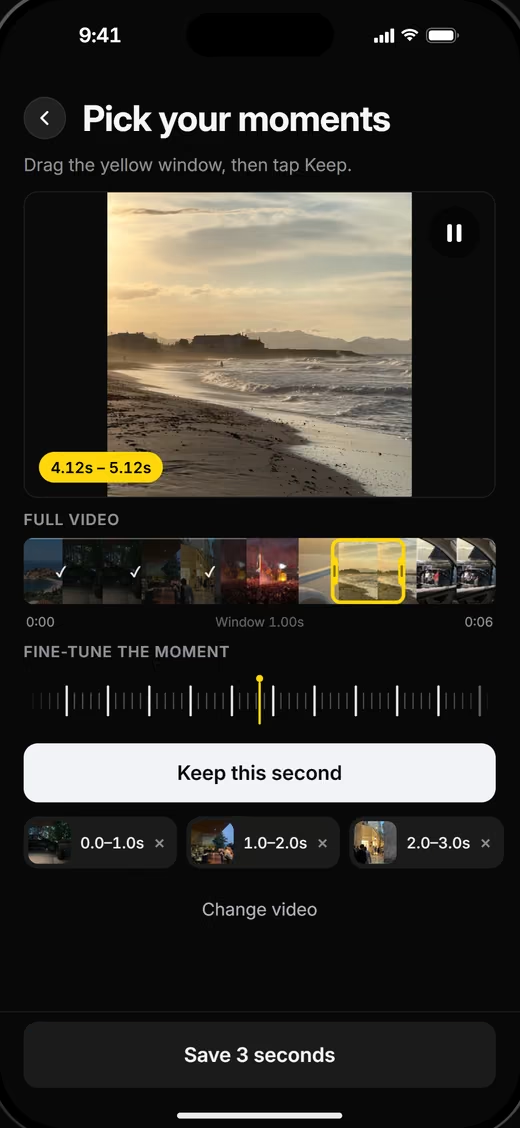
4. Pick your moments
The app opens Pick your moments. This is where you choose the seconds that get cut to the beat.
- Drag the yellow one-second window to a moment you like.
- Tap Keep this second. Do it again for every second you want from this video.
- Tap Save N seconds (or Save to source when empty). The button counts the seconds you kept.

Add more videos the same way. You can keep as many seconds from one video as you like.
5. Choose your Sources and the Shape
Back on Create, choose Videos or Images (an edit is all videos or all images).
The Sources row sets which Sources go into the edit. All uses every Source. Choose lets you pick, for example only one trip. Auto picks 3-6 at random.
Under Shape, pick the format: 9:16, 3:4, 1:1, 4:3 or 16:9. Add ending is optional and puts a one-second “Made with Content Maxer” ending on the edit.

6. Tap Generate edit
Tap Generate edit at the bottom of Create. The app detects the beats of your song on your iPhone and cuts your kept seconds to them.
Tap it again for a different edit from the same seconds.

7. Save the edit or share it
The finished edit is saved to Photos. The sheet shows Post it with #contentmaxerapp, then Share (opens the iOS share sheet), Open in Photos, Convert (applies the camcorder look) and Done.

How the cuts follow the beat
Content Maxer cuts video to the beat with hard cuts. The cuts sit on the beats of the song, and there are no transitions between them.
The edit is made only from the seconds you kept. The app does not create footage and does not use generative AI.
Beat detection and cutting run on your iPhone. There is no account and nothing is uploaded.
Changing the edit without starting over
Your Sources and your song stay in the app, so you can try variations:
- Tap Generate edit again for a different edit from the same seconds.
- Tap the song on Create to use a different part. You don’t add the song again.
- Switch Sources between All and Choose.
- Pick another Shape, for example 1:1 instead of 9:16.
- Add photos to a Source next to your videos.
Changing the song part and adding photos to a Source work since version 1.0.3.
Where the song and the clips come from
The song is an audio file on your iPhone, or the sound of one of your own videos. The clips come from your Photos library. Content Maxer cannot download audio or clips from TikTok or Instagram.
Use clips and music you have the rights to, and check the rules of the platform you post on. Your own footage is the safe choice. Content Maxer does not download clips or music. It works with what is on your iPhone.
If you want a camcorder look, run your footage through the Converter first, then add it to a Source.
Making edits to promote your own song? The guide on how to promote a song on TikTok covers what to post and how often.
What Content Maxer does and doesn’t do
Content Maxer is an iPhone app for beat sync edits. It cuts the seconds you picked to the beat of a song.
It does
- Cut the seconds you kept to the beat of your song
- Use a song file or the sound of one of your videos
- Make a new edit each time you tap Generate edit
- Export in 9:16, 3:4, 1:1, 4:3 and 16:9
- Process everything on your iPhone, with no account
It doesn’t
- Use generative AI or create footage
- Add transitions: it makes hard cuts only
- Download music or clips from TikTok or Instagram
- Run on Android, or work without a subscription
Beat sync edits on iPhone: FAQ
Do I need an account to cut video to the beat on iPhone?
No. Content Maxer has no account. The beats are detected and the edit is made on your iPhone, and nothing is uploaded. You do need a subscription to use the app.
Can I use the sound of a video instead of a song file?
Yes. Under Audio you can add a song from your files or use the sound of one of your own videos. Then choose the part you want.
Can I change the part of the song later?
Yes. Tap the song on Create and pick a different part. You don’t have to add the song again. This works since version 1.0.3.
Can I sync photos to music as well as video clips?
Yes. Since version 1.0.3 you can add photos to a Source next to your videos. You choose that Source on Create like any other.
Does Content Maxer add transitions between clips?
No. It makes hard cuts on the beat and nothing else between the clips. It does not add text, stickers or templates either.
Does Content Maxer use generative AI?
No. Content Maxer does not create footage. It detects the beats of your song on your iPhone and cuts the seconds you kept to those beats.
Can I sync clips to a sound from TikTok or Instagram?
Content Maxer does not download audio or clips from TikTok or Instagram. Use a song file on your iPhone or the sound of one of your own videos, and make sure you have the rights to use it.
How much does Content Maxer cost?
Content Maxer is free to download. Using the app requires a subscription: $49.99 per year with a 7-day free trial, or $9.99 per month. Both renew automatically until you cancel in Settings › [your name] › Subscriptions. Details in Pricing.
Something else? See Support.