
How to film like an old camcorder on your iPhone
Open the Camcorder tab, set the white balance and film with the old camcorder look live in the viewfinder. Six steps, each with a screenshot.
The short version
Content Maxer is a camcorder app for iPhone: you film in its Camcorder tab, with the old camcorder look already on in the viewfinder. Choose a white balance, add flash or zoom if you want, and tap the red record button. Your clip is saved to Photos.
- Open the Camcorder tab
- Choose a white balance
- Set the flash and zoom
- Tap the red record button
- Save or share the clip
- Find it again in Tapes
Everything runs on your iPhone, with no account and no uploads.
Free download. 7-day free trial on the yearly plan, then a subscription is required. iPhone only.
What you need
- An iPhone with iOS 16.4 or later and Content Maxer installed.
- Camera and microphone access. iOS asks the first time you record.
- Something to film. You do not need any existing footage or a song.
How to film like a camcorder on iPhone
These steps use the Camcorder tab in Content Maxer, which is also a VHS video editor and camcorder filter. Words in bold are the names you see in the app. The screenshots are from version 1.0.5, and the white outline marks what to tap.
1. Open the Camcorder tab
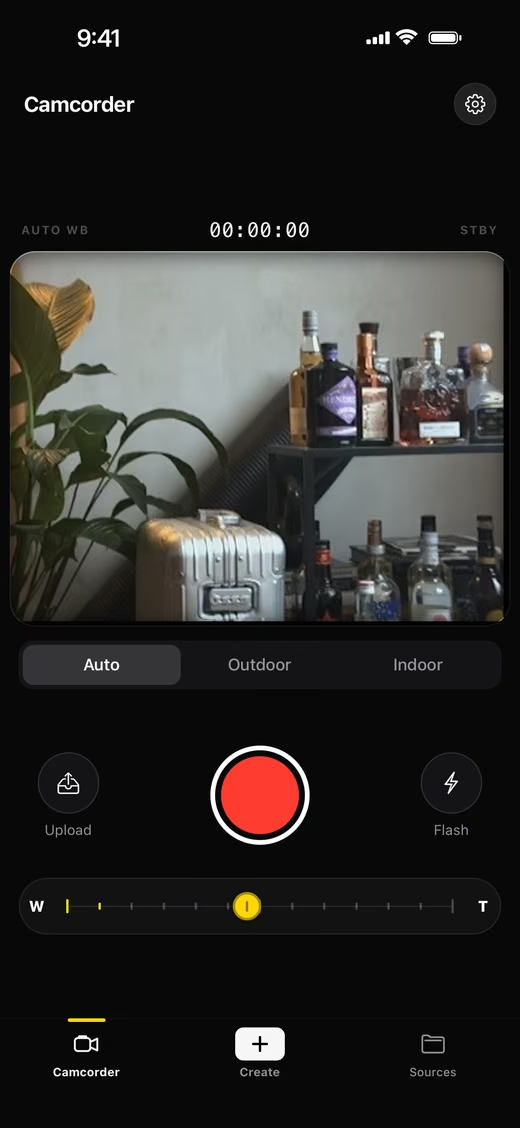
Tap Camcorder at the bottom left, next to Create and Sources. Above the viewfinder is a status row: AUTO WB on the left, the timer 00:00:00 in the middle and STBY on the right. STBY means standby: the camera is ready and not recording.

2. Choose a white balance
Under the viewfinder, pick Auto, Outdoor or Indoor. The label on the left of the status row follows your choice: AUTO WB, OUTDOOR or INDOOR. If the colours look off in your light, try Outdoor in daylight or Indoor under lamps.
Choose before you record. The white balance is locked while a take is running.

3. Set the flash and zoom
Flash is a switch to the right of the record button, and it turns yellow when it is on. The bar underneath runs from W to T: hold it towards T to zoom in and towards W to zoom out. Both are optional.

4. Tap the red record button
Tap the red button in the middle to start. STBY changes to REC and the timer starts counting. Tap the button again to stop.
The screen while recording is not pictured here: the screenshot shows the button before you tap it.

5. Save or share the clip
When you stop, a sheet shows Adding the camcorder look… and then Saving to Photos…. When it says Saved to Photos, tap Share and pick an app in the iOS share sheet, tap Open in Photos to watch it, or tap Done to go back to the viewfinder and film again.

6. Find it again in Tapes
Open the Create tab and tap Tapes, next to Edits. Every tape you filmed or converted collects there.

How to get the old camcorder look on iPhone
You do not add the old camcorder look afterwards. Version 1.0.5 rebuilt it from a real camcorder, and it is on in the viewfinder while you film. Apart from the white balance, there is nothing to adjust.
What is left to you is how you film. These are habits, not app settings:
- Film in long takes. Home video is mostly one run of footage, not lots of short clips.
- Zoom slowly and not often, the way you would with a camcorder zoom rocker.
- Pick the white balance for the light you are in before you tap record.
- Turn the flash on in a dim room and leave it off outside.
Ask people before you film them, and check the rules of the platform you post on. If you add a song to an edit later, use music you have the rights to.
Already shot it? Use Upload instead
The Upload button, to the left of the record button, converts a video from your Photos library. That route has its own guide: how to give your iPhone videos a VHS camcorder look.
Cut your clips to a song
Clips you film are saved to Photos, so you can add them to a Source with Add video and cut them to the beat of a song. The beat sync video editor side of Content Maxer is covered in how to sync video clips to music on iPhone.
What Content Maxer does and doesn’t do
Content Maxer is an editing and filming app. It does not use generative AI and does not create footage.
It does
- Show the camcorder look live in the viewfinder
- Film with Auto, Outdoor or Indoor white balance, flash and a W–T zoom bar
- Save every clip to Photos and collect it in Tapes
- Run on your iPhone, with no account and no uploads
It doesn’t
- Use AI to generate or create footage
- Let you adjust the look beyond the white balance
- Add text, stickers, templates or transitions
- Post to TikTok or Instagram for you
- Run on Android, or work without a subscription
Camcorder app for iPhone: FAQ
How do I film like a camcorder on my iPhone?
Open the Camcorder tab in Content Maxer, choose Auto, Outdoor or Indoor white balance, and tap the red record button. The viewfinder shows the camcorder look while you film. Tap the button again to stop, and the clip is saved to Photos.
Can I see the old camcorder look before I record?
Yes. The Camcorder screen shows the look live in the viewfinder, so you can frame the shot with it. The status row above the viewfinder shows STBY until you start recording.
Where do my camcorder clips go?
Clips you film are saved to your Photos library. They also collect under Tapes on the Create tab, next to Edits.
Can I give a video I already shot the camcorder look?
Yes. Tap the Upload button on the Camcorder screen and pick a video from Photos. The VHS camcorder look guide covers it step by step.
Does Content Maxer use AI to create the camcorder look?
No. Content Maxer has no generative AI and does not create footage. The look was rebuilt from a real camcorder in version 1.0.5, and everything runs on your iPhone with no account and no uploads.
How much does Content Maxer cost?
Content Maxer is free to download. Using the app requires a subscription: $49.99 per year with a 7-day free trial, or $9.99 per month. Both renew automatically until you cancel in Settings › [your name] › Subscriptions. Details in Pricing.
Something else? See Support.